How to screenshot a window on Mac (and mark it up in seconds)
Every built-in macOS screenshot shortcut, explained — plus the fastest way to add an arrow, a box and blur before you share.
 Prinx TeamUpdated · 6 min read
Quick answer
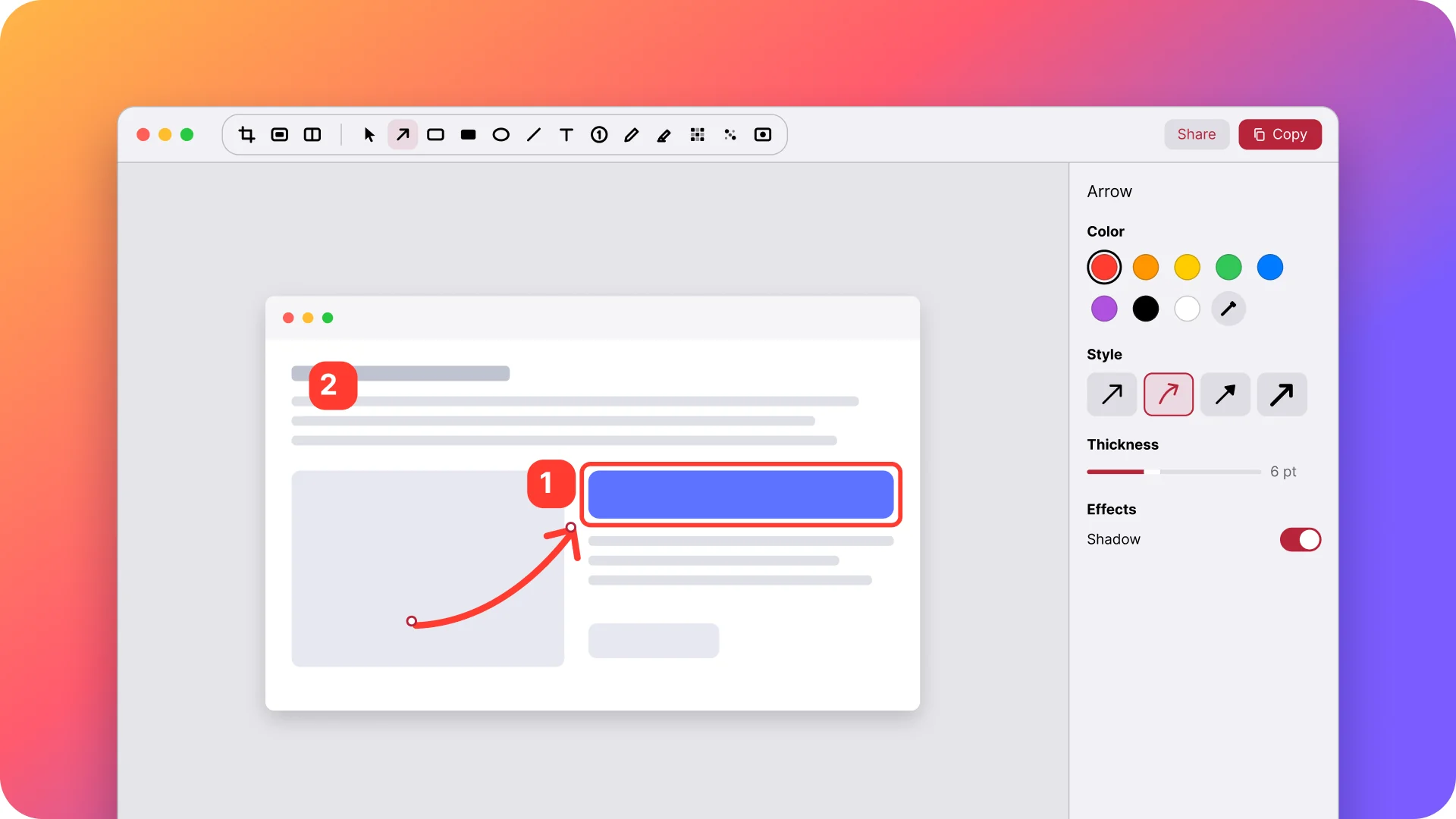
Press ⌘⇧4, then press Space and click the window you want. macOS saves the screenshot to your Desktop. Hold Option while you click to leave out the window’s shadow. To add an arrow, a box or blur before sharing, Prinx can take over the same shortcut and open the capture ready to mark up.
Every Mac screenshot shortcut
macOS has four built-in screenshot shortcuts. All of them save a PNG to your Desktop unless you change the location in the Screenshot toolbar.
| Shortcut | What it captures |
|---|---|
| ⌘⇧3 | The entire screen |
| ⌘⇧4 | An area you drag to select |
| ⌘⇧4, then Space | A single window, with its shadow |
| ⌘⇧5 | The Screenshot toolbar, including screen recording |
How to screenshot a single window
- Press ⌘⇧4. The pointer turns into a crosshair.
- Press Space. The pointer turns into a camera and the window under it is highlighted.
- Click the window. Hold Option while clicking to remove the shadow.
- Find the screenshot on your Desktop, or click the thumbnail to edit it.
How to mark up the screenshot before you share
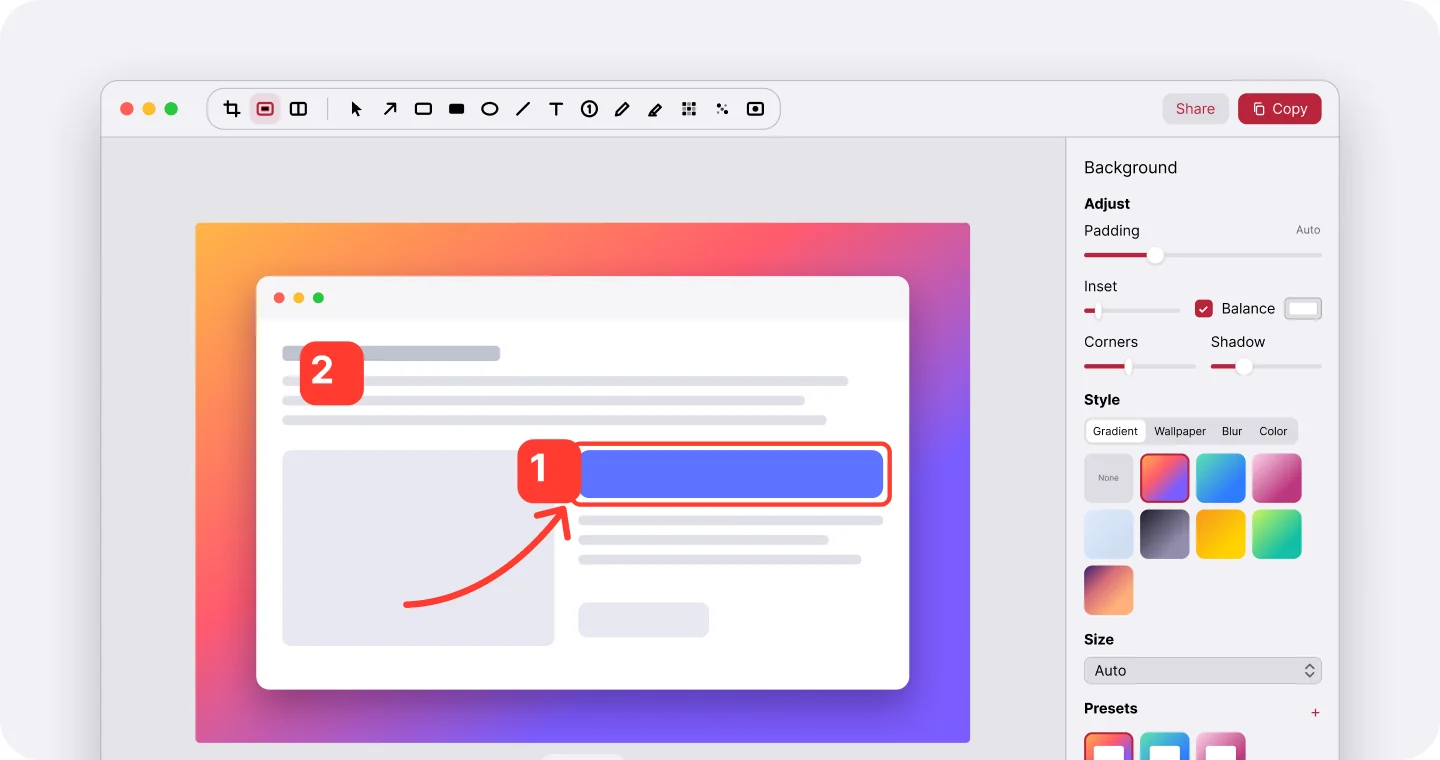
The built-in Markup tools work for a quick arrow, but your edits are flattened once you save. Prinx keeps arrows, boxes, numbers and text editable, blurs private details in one stroke, and lets you drag the result straight into Slack, Mail or a bug report.
People also ask
Where do screenshots go on a Mac?
To your Desktop by default. Press ⌘⇧5, click Options and choose another folder under “Save to”.
How do I screenshot without the shadow?
Hold Option while you click the window after pressing ⌘⇧4 and Space.
Can I use ⌘⇧4 with Prinx?
Yes. Prinx can take over ⌘⇧3, ⌘⇧4 and ⌘⇧5, and you can give them back to macOS anytime.