
Use ⌘⇧3, ⌘⇧4 and ⌘⇧5 with Prinx
Quick answer
Open Prinx › Settings › Shortcuts and choose “Use ⌘⇧3, ⌘⇧4 and ⌘⇧5 for Prinx”. macOS asks you to turn off its own screenshot shortcuts once; after that, the shortcuts you already know open Prinx. You can give them back to macOS anytime.
Turn it on
- Open Prinx and choose Settings › Shortcuts.
- Turn on “Use ⌘⇧3, ⌘⇧4 and ⌘⇧5 for Prinx”.
- Click “Give ⌘⇧4 Back to macOS…” in the dialog to open System Settings, then turn off the macOS screenshot shortcuts.
- Press ⌘⇧4. Prinx opens, ready to capture.
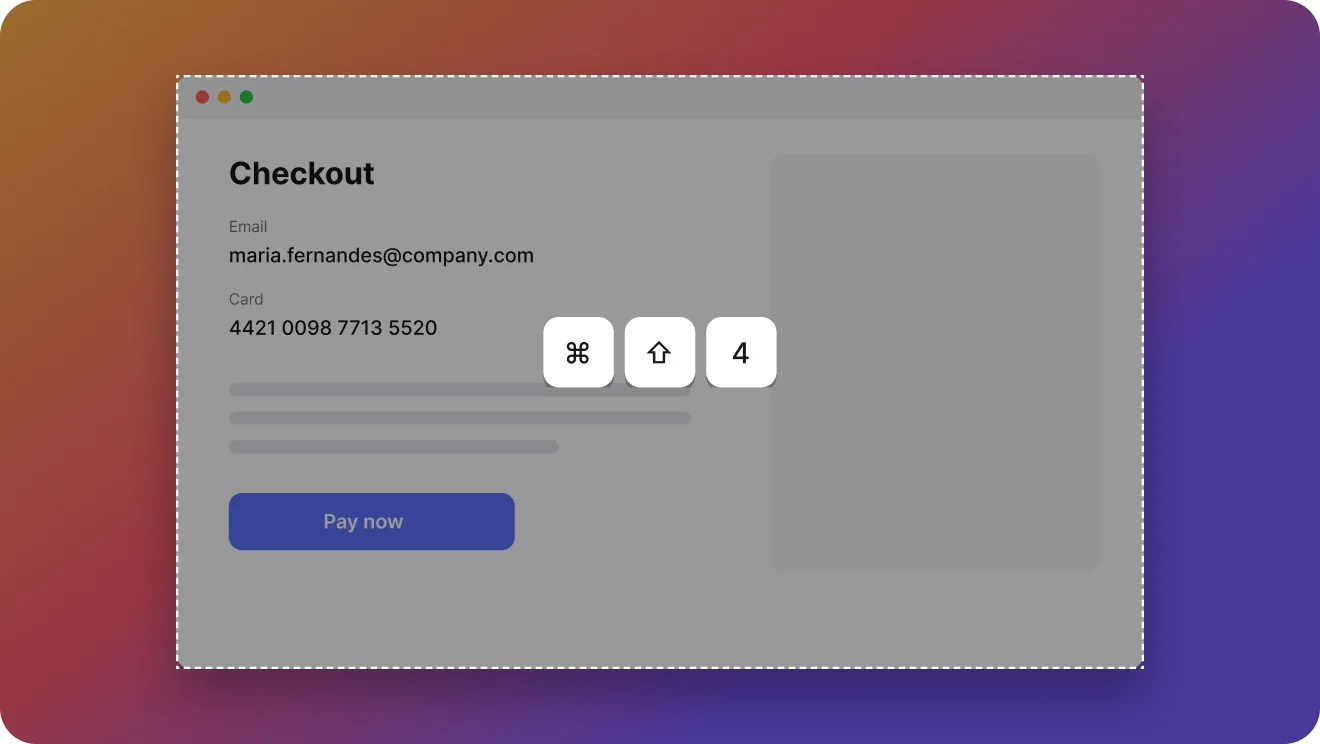
What each shortcut does in Prinx
| Shortcut | In Prinx |
|---|---|
| ⌘⇧3 | Captures the whole screen and opens it in the editor |
| ⌘⇧4 | Select an area; press Space to capture a window |
| ⌘⇧5 | Opens the capture options |
Watch how it works
Take over ⌘⇧3, ⌘⇧4 and ⌘⇧5
Lesson 1 of 4 · Mac Video, 1 min 40 s.
Prefer video? This lesson shows the same steps in under two minutes.
Was this page helpful?